Matching Rules
Last updated: September 25, 2025
Matching rules let you define the logic for connecting two different transactions within the app. You can find them under: Side bar → Flows & Rules → Matching Rules.
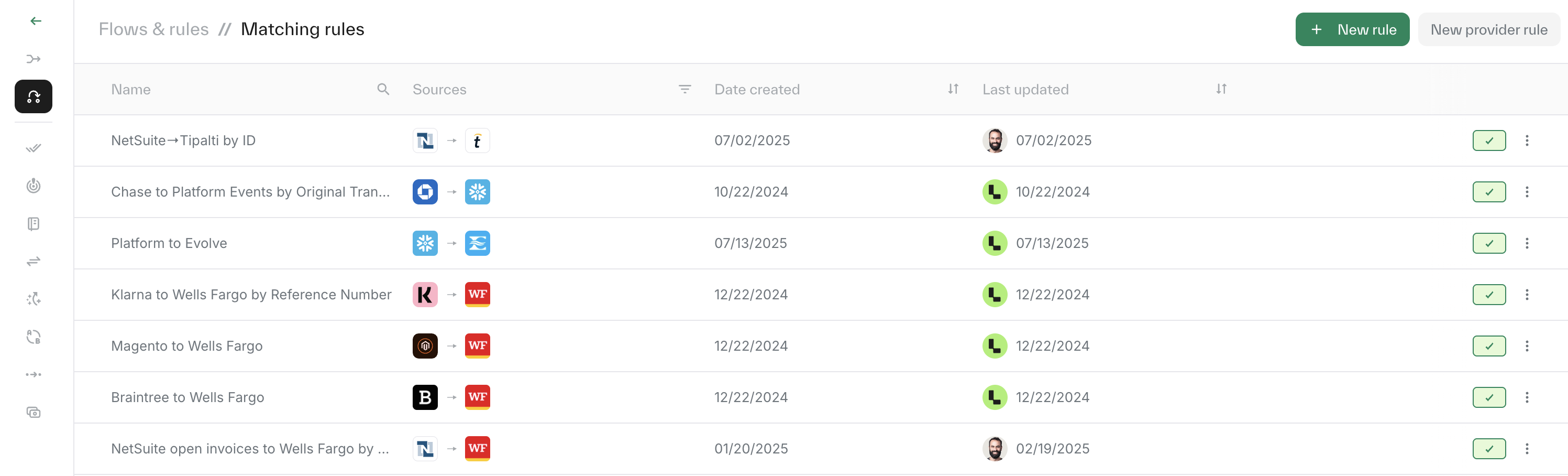
Creating a matching rule:
New rule - Click the green New Rule button at the top right of the page.
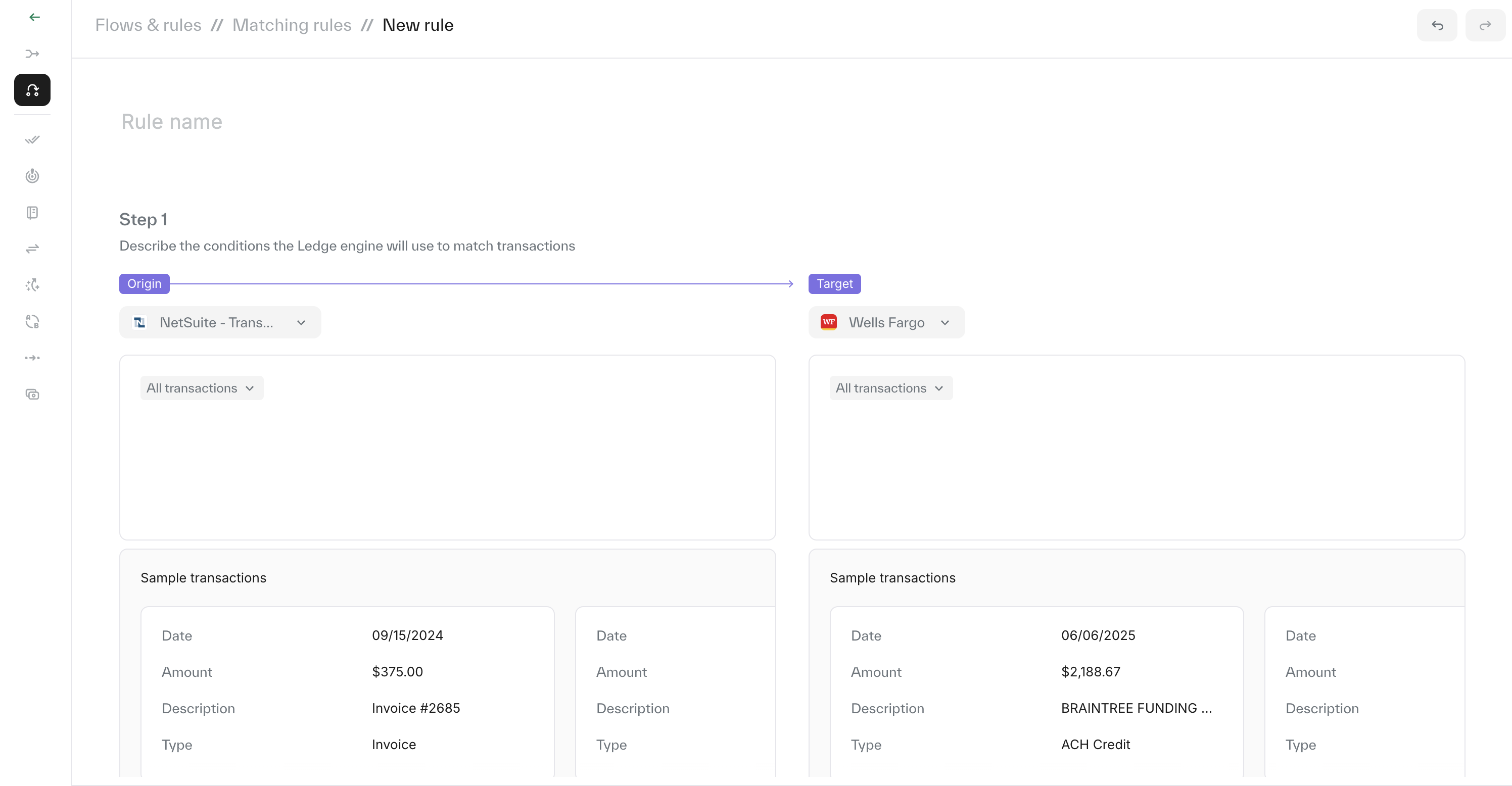
Origin source - Select the source from the dropdown list of all your available sources.
Target source - Select the corresponding target source from the dropdown list.
Transactions data - Below the origin and target source fields, you can filter the transaction audience for greater accuracy. Applying filters here is recommended whenever possible.
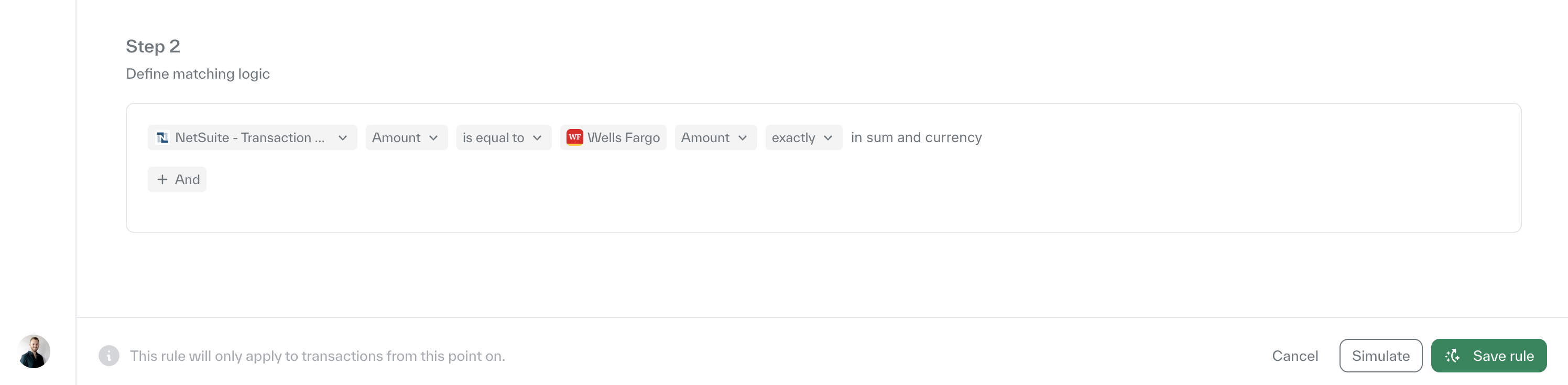
Define the matching logic - Under the Definition Rule section:
Choose the relevant source.
Select the field you want to compare.
Map it to the corresponding field in the target source.
Editing a matching rule:
Each matching rule can be edited at any time. Simply open the relevant rule and update the required fields.
Deactivating a matching rule:
Each rule can deactivated by clicking the 3 dots on the right of the matching rule and choosing 'Deactivated'.
Please note: changes for editing and deactivating will only apply to future matches and will not affect historical data.